Summer Update
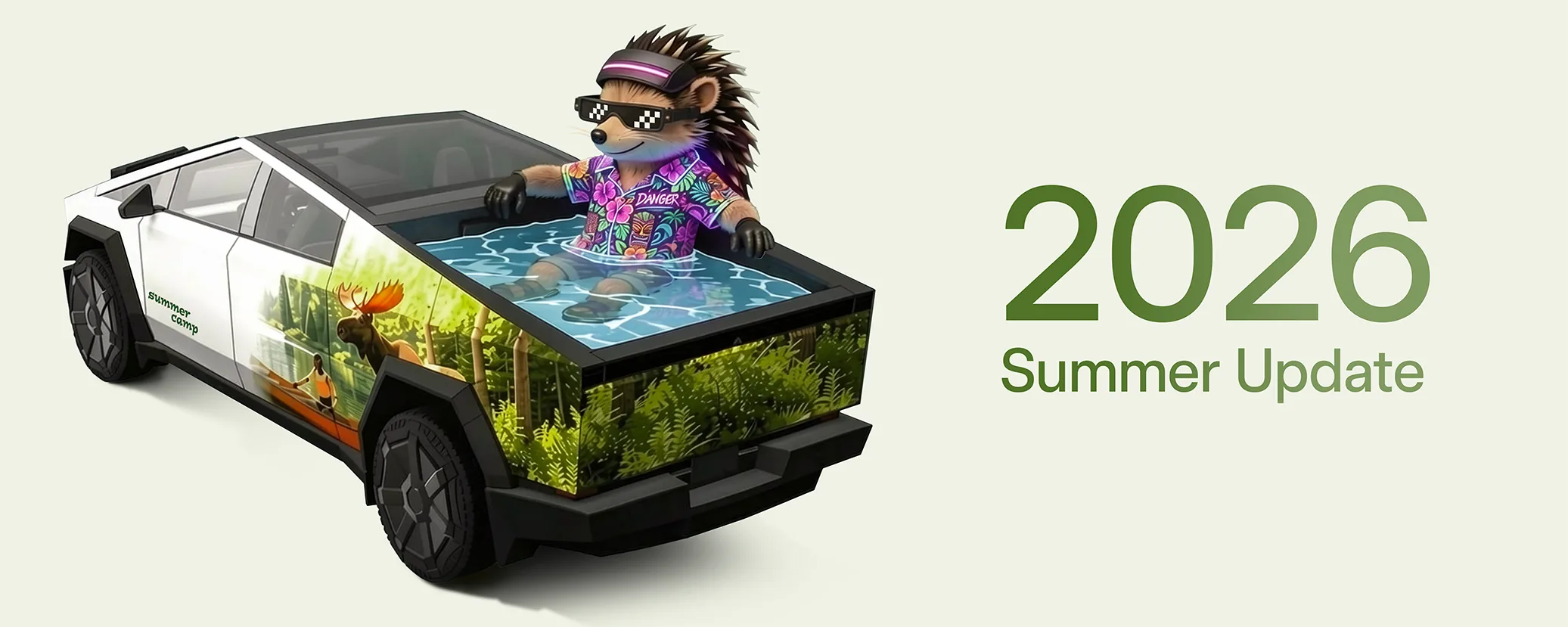
Included in 2026.26.1Swipe up to see your new features in the 2026 Summer Update.

2026.26.1 adds Summer Update, Grok Commands, Custom Wraps, Automatic Navigation, Camera Preview, Apple Music, Driving Visualization, Web Browser, Supercharger Search, "Hey Grok", Caraoke with Scoring, Set Arrival Energy, Preferred Routes, Rear Display, Welcome Animation, Traction Control Modes, Traffic Controls on Route and Speed Cameras on Route.
See everything new below ↓Available for HW4 (AI4), HW3 and HW2.5. A few items below are only for a specific computer, marked accordingly. HW4 (AI4)HW3HW2.5
What is new

Swipe up to see your new features in the 2026 Summer Update.
Grok can now make phone calls, play music, adjust climate, and search the Controls panel. Ask Grok about your Tesla or what was included in the latest software update.
Go to Grok > Settings to enable or disable "Hey Grok" and location-based reminders. Requires Premium Connectivity or a WiFi connection. Conversations are anonymous to Tesla and not associated with your vehicle.

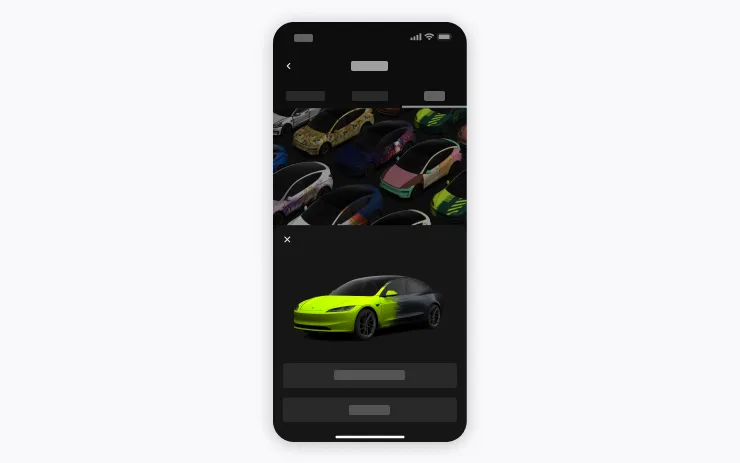
Use the Mobile App to upload custom wrap designs from images on your phone and send directly to your Tesla. Go to Creations > Wrap > Upload. Requires Mobile App v4.59.0 or later.
To access in car, go to App Launcher > Toybox > Paint Shop.

Automatic Navigation now adapts to your routine. In addition to Home, Work, and upcoming calendar events, your vehicle can now suggest and route to the places you visit regularly, like a school drop-off on the way to work, or the gym on the way home.
To enable, go to Controls > Navigation > Automatic Navigation. Location data is anonymous to Tesla and not associated with your vehicle.

You can now open Camera Preview at any time, even if your Tesla is not in Park.
Go to Controls > Service > Camera Preview and tap on any camera view to see it individually. Tap the grid button to switch back to all cameras.

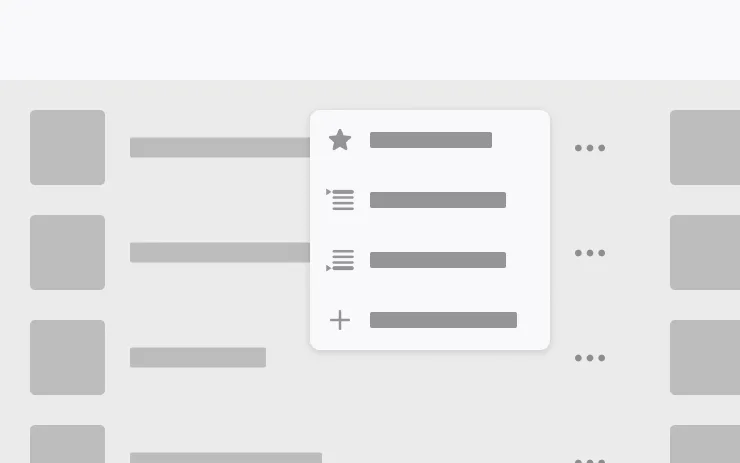
Add songs to your Apple Music queue directly from Search results and Artist pages. Tap and hold a song, or tap the three-dot menu to play next, add to queue, save to your library, or mark as a favorite. Requires an active Apple Music subscription.

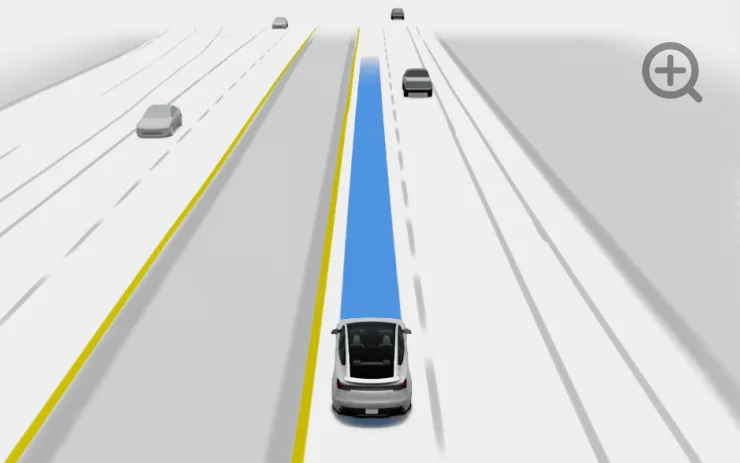
Customize your Self-Driving zoom preference. Pinch the visualization or select one of the presets in Controls > Self-Driving > Visualization Camera Zoom.

You can now use your Tesla's interior camera and cabin microphone in Web Browser. Tap to grant permissions when a website requests access. Camera is only available while parked.

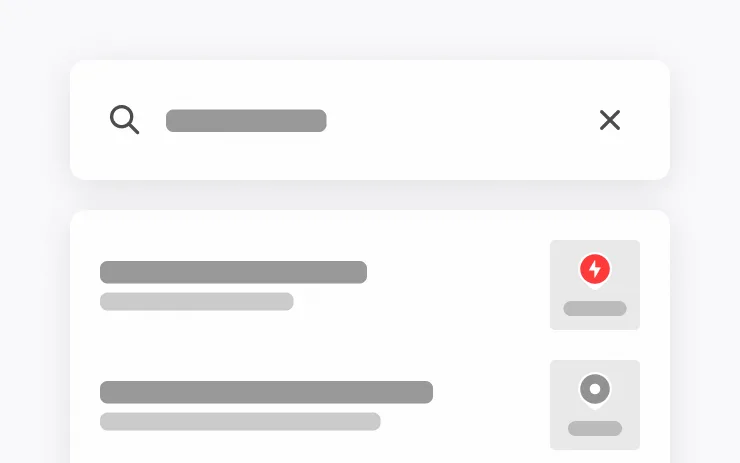
You can now find Superchargers by name when searching for a destination.

This update includes important security fixes and improvements.

You can now talk to Grok, an intelligent assistant built by xAI. To launch Grok, go to App Launcher > Grok, long-press the voice button on your steering wheel, or say "Hey Grok." Enable "Hey Grok" in Grok > Settings. Say "goodbye" to dismiss.
You can choose Grok's voice and personality, ranging from Storyteller to Unhinged. Set Grok's personality to Assistant to have Grok add and edit navigation destinations, becoming your personal guide. You can also set location based reminders, like "remind me to pick up milk when I'm near home." Enable location based reminders in Grok > Settings.
Requires Premium Connectivity or a WiFi connection. Conversations are anonymous to Tesla and not associated with your vehicle.
Note: Grok is currently in early Beta and does not support voice commands for car controls other than navigation. Existing voice commands remain unchanged. "Hey Grok" is trained on American English.

Caraoke now scores your singing while in Park. Earn stars and track your high scores in the My Karaoke tab. On the rear display, tap the queue button to show a QR code for passengers to scan and add songs to the queue from their phones. Requires Premium Connectivity.

Set your desired Arrival Energy for any trip from your phone. Open the location tab in the Tesla Mobile App, enter your destination, and tap Set Arrival Energy. Requires Mobile App v4.58.0 or later.

Navigation now prioritizes routes that you've taken before. Online Routing must be enabled at Controls > Navigation > Online Routing. Location data is anonymous to Tesla and not associated with your vehicle.

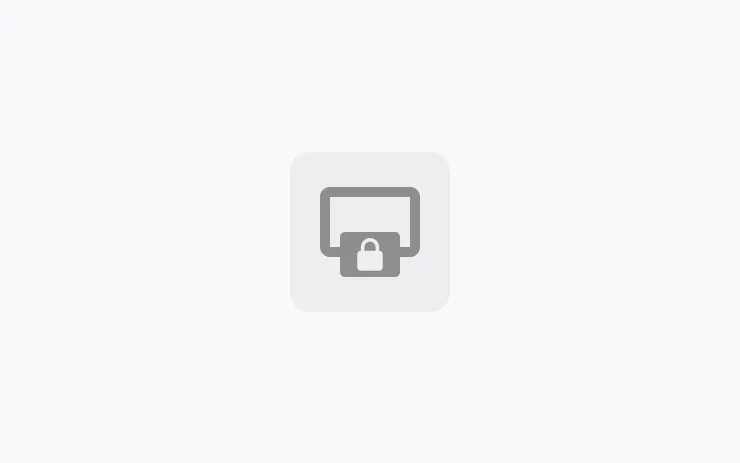
Disable rear touchscreen controls from the center display by going to App Launcher > Rear > Lock Rear Display. Content selected from the center display will continue to play in the rear.

Your Tesla now welcomes you with animations when turning on. To disable, go to Controls > Display > Welcome Animation.

Choose from three updated traction control modes: Auto for normal driving conditions, Slippery Surface for icy or wet roads, or Stuck Assist when stuck in snow, mud, or sand. The mode resets to Auto at the start of each drive. To select, go to Controls > Dynamics > Traction Control Mode.

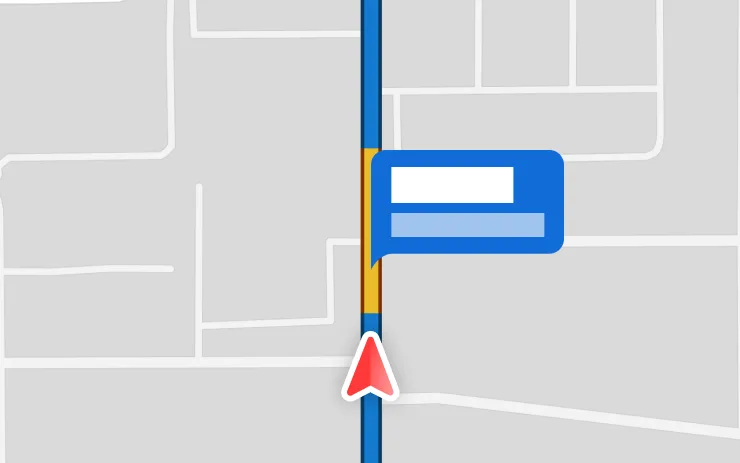
Navigation now includes symbols along your route to show traffic lights and stop signs. Requires Premium Connectivity.

Navigation now includes symbols along your route to show speed cameras. Requires Premium Connectivity.
Also in this build

If you attempt to open a door while an approaching object is detected in your blind spot (for example, a bicyclist approaching from behind) a chime sounds, and your door will not open upon initial button press. Wait a short time and press the button a second time to override the warning.

Dashcam clips are now encrypted for privacy when saved to your USB flash drive. Only your vehicle can view them. To decrypt clips, tap the padlock icon in the Dashcam app or visit dashcam.tesla.com. To disable encryption, go to Controls > Safety > Encrypt Dashcam Recordings.

You can now block Browser, Theater, and Arcade from your Tesla by going to Controls > Safety > Parental Controls while in Park.
No matching version.
Data via Teslascope