
Tesla has published a new tutorial dedicated to Full Self-Driving (Supervised), commonly known as FSD, breaks down exactly how owners can turn the feature on, engage it during a drive, adjust its behavior, and safely hand control back at any time.
While FSD has been available in various forms for several years, Tesla’s guidance has evolved alongside the software itself, and this tutorial is aimed at making sure both new and existing owners understand how the current version of the system actually works, and what their responsibilities are while using it.
What FSD (Supervised) Does
According to Tesla, FSD can drive a vehicle “almost anywhere” under the driver’s supervision, handling a wide range of road types along the way to a destination, including:
- Curves
- Intersections
- Turns
- Roundabouts
- Highways
Tesla is careful to frame the feature as a convenience and safety aid rather than a replacement for the driver. As the tutorial states plainly, FSD requires active driver supervision and does not make the vehicle autonomous. The driver remains responsible for the safe operation of the car at all times.
Tesla also notes that which FSD features are available to a given owner can vary based on:
- Vehicle configuration
- Software version
- Options purchased
- Region
Owners are advised to check the Software tab in their vehicle to confirm which version of FSD is currently installed.

You can now view FSD usage stats in the self-driving app.

Step 1: Enabling FSD
To turn the feature on for the first time, Tesla instructs owners to navigate to:
Controls → Self-Driving → Full Self-Driving Supervised


Step 2: Setting a Destination and Starting a Drive
Once enabled, using FSD starts with entering a destination on the touchscreen and pressing Start Self-Driving. From there, the car handles the logistics of getting underway. Tesla says the vehicle will automatically shift between drive and reverse as needed, and will park itself upon arrival at the destination.


Step 3: Engaging FSD While Driving
To activate FSD once already on the road, Tesla outlines two methods depending on the vehicle’s controls:
Vehicles with a scroll wheel: Press the right scroll wheel once

Vehicles with a drive stock: Pull the drive stock down once

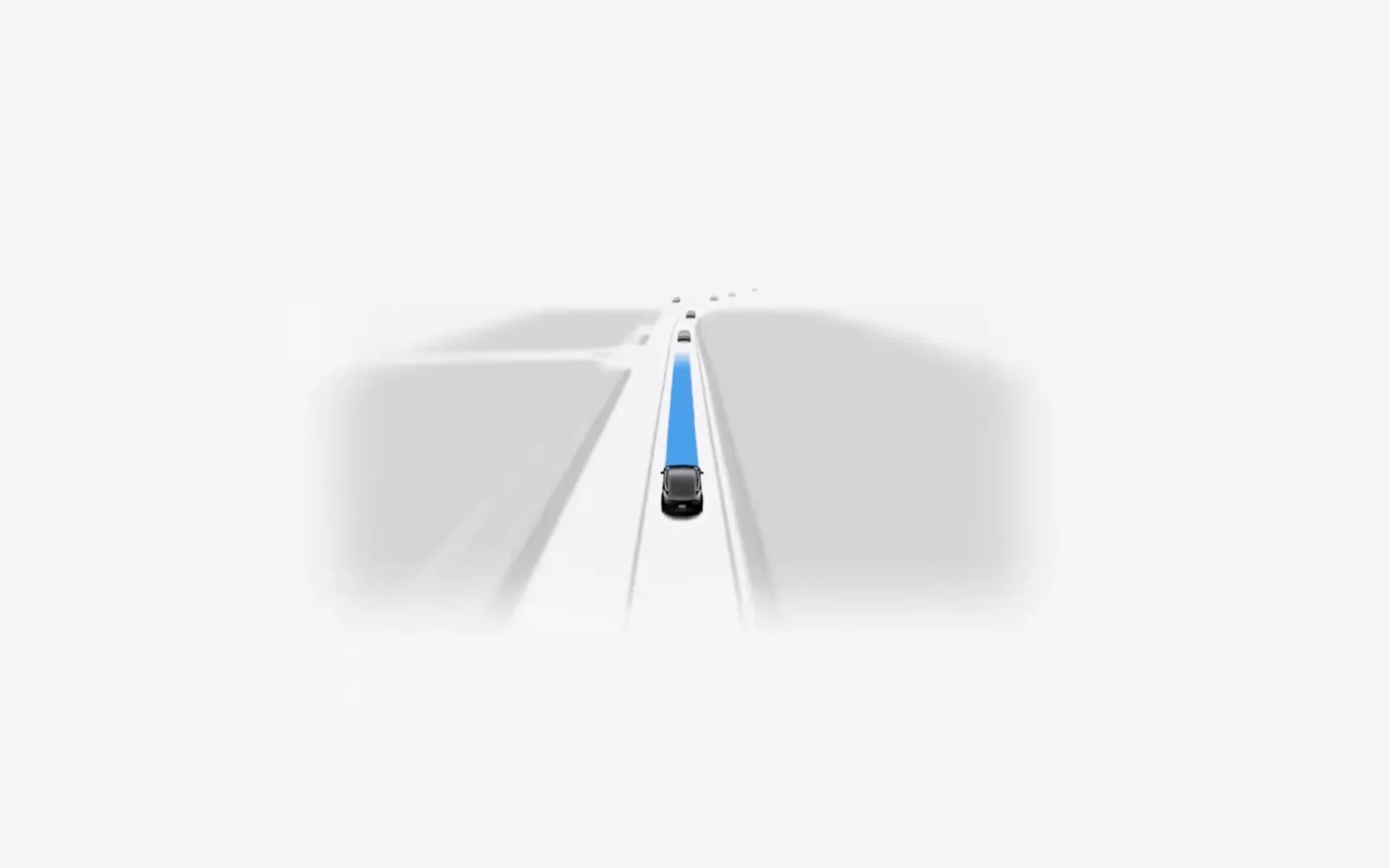
Step 4: Reading the Touchscreen
Tesla places a strong emphasis on understanding the car’s on-screen indicators before relying on the feature:
Gray driving path: FSD is ready to be engaged but is not currently controlling the vehicle

Blue line with “Self-Driving” label: FSD is actively controlling the vehicle

Knowing the difference at a glance is presented as a core part of using the system safely.
Step 5: Disengaging FSD
Tesla outlines multiple ways to hand control back to the driver at any time:
Press the right scroll wheel once (or push the drive stock up, depending on vehicle)

Press the brake pedal

Apply turning force to the steering wheel

Any of these actions will immediately disengage the system, putting the driver back in full control.
Step 6: Adjusting Driving Style
FSD’s behavior can be tuned to match a driver’s preferences using five selectable modes:
- Sloth Most relaxed
- Chill Relaxed
- Standard Default
- Hurry Assertive
- Mad Max Most assertive
Sloth and Chill are intended for more relaxed, cautious driving, while Hurry and Mad Max push the car to drive more assertively.

Step 7: Setting an Arrival Preference
The tutorial also covers a feature that lets drivers indicate what they’d like the car to do once it reaches the destination. Using an on-screen dropdown, owners can select an arrival option, which may unlock additional related settings depending on the choice made.
Tesla cautions that, depending on real-world conditions at the destination, FSD may not always be able to follow the selected preference, drivers should be ready to take over if needed.

Tesla closes the tutorial by pointing owners toward additional resources for deeper information on the system:
Watch the full tutorial:
Where to Learn More
- The Tesla Tutorials channel on YouTube
- Tesla.com/FSD
- The in-car FSD app
- The vehicle’s Owner’s Manual
We’ve launched an official Tesla Owners Online Forum. Join early and claim your "Founding Fuel" badge.