
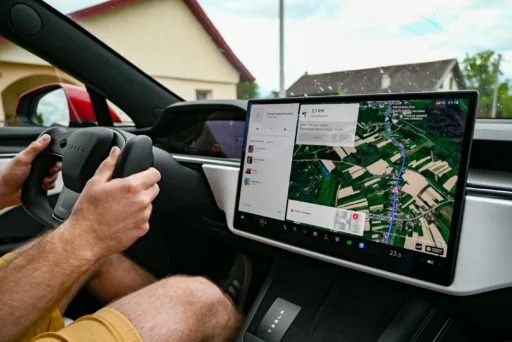
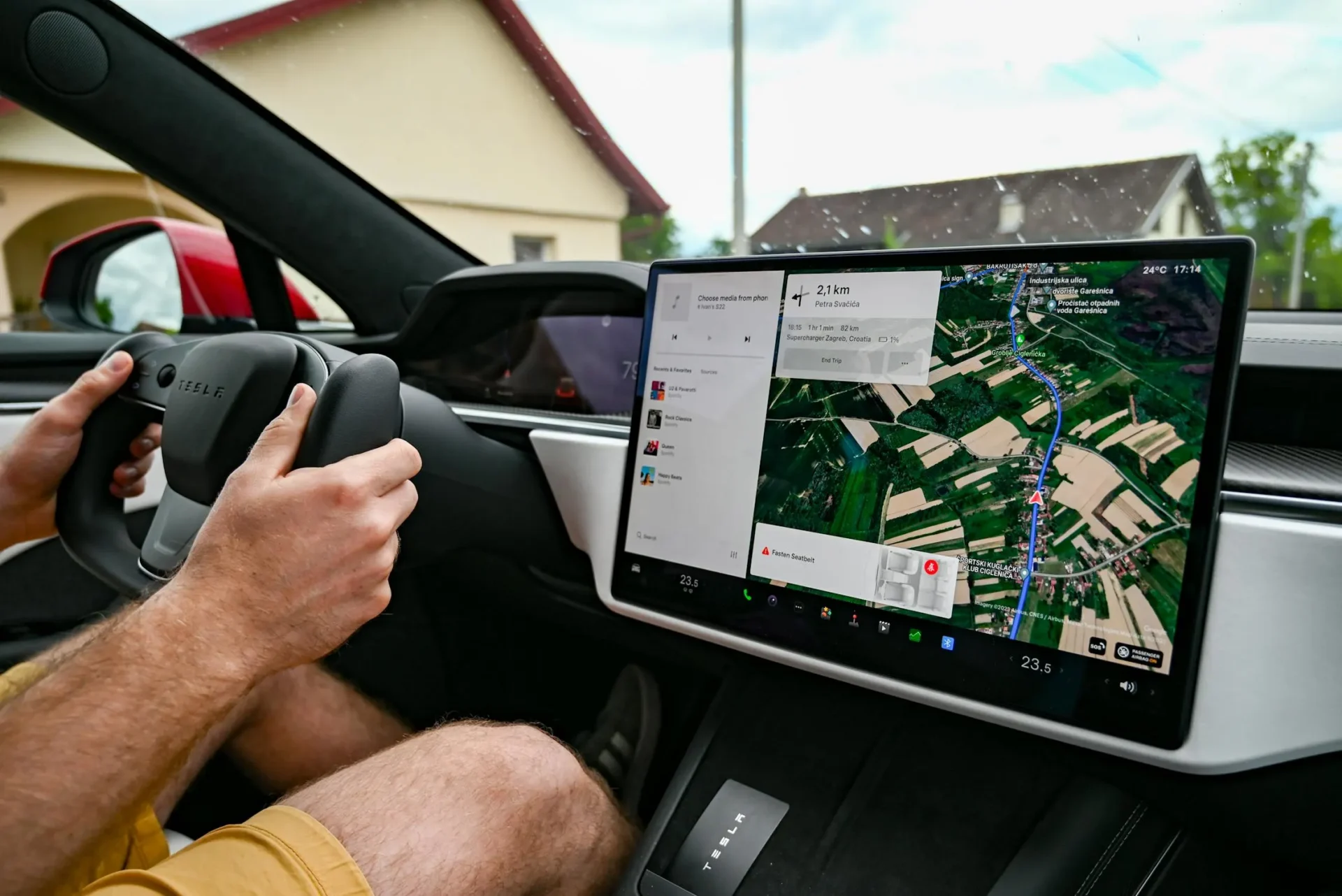

Tesla recently pushed a major map update to drivers in North America. The download confused many owners who thought they were getting a new version of Full Self-Driving. The download took a long time, often more than 30 minutes. The car didn’t restart, and the software version stayed the same.
People quickly thought Tesla had canceled the update. They started calling it a “pulled” release on social media. But they were looking at the wrong number.
The real change happened in the navigation menu. Tesla owner Tony Velasco shared on X that he expected the push to be FSD v14.3.7 for his Hardware 4 car. He watched a large map package download for more than 30 minutes. His vehicle was running software version 2026.20.6.11, and the map version updated from NA-2025.44 to NA-2026.26. The installation finished without restarting the screen. Map data installs differently than normal software, and the main system build stays exactly the same.


What NA‑2026.26 likely changes
Tesla does not typically publish map‑specific release notes, but official guidance explains that navigation data refreshes update road geometry, points of interest, speed limits, and routing information.
Tesla releases new map data about twice a year. The files are large and require a strong Wi-Fi connection. A recent European update, EU-2026.8, improved speed limits, road layouts, and routing accuracy. This North American update likely does the same. FSD relies on accurate maps. Because FSD (Supervised) relies heavily on accurate speed limits, road topology, and closures, a major underlying map refresh can materially improve route quality and driver‑assist behavior even when FSD version numbers remain unchanged.
Connecting to the Summer Update
This map refresh is part of Tesla’s 2026 Summer Update. The main software, version 2026.26, brings new features like automatic navigation and better voice commands. But Tesla is rolling out the software and the maps separately.
Some cars running older FSD versions haven’t received the new software yet. They are getting the map data first. This split rollout explains why so many people saw a download without a software change.
What to Do
You can check your map version inside the car. Go to Controls > Software, and look for Navigation Data. If you still have a NA‑2025.xx or older version, connect your car to Wi-Fi and watch for a background download. The update will download in the background.
If you see the update notification disappear, don’t worry. Your car probably just finished installing the new maps, mean NA‑2026.26 has finished installing.
We’ve launched an official Tesla Owners Online Forum. Join early and claim your "Founding Fuel" badge.

I hope this includes updates to the speed limits on roadways. Speed limit is 55 but the map thinks its 35. Or I leave a street that is 25 to a street that is 40 and it stays at 25.