
Available on
Model 3Model Y
Estimated Range
Added in 2026.26.6Your estimated battery range now incorporates additional characteristics related to battery aging over time.

What you would gain
No matching version.
Your estimated battery range now incorporates additional characteristics related to battery aging over time.

Navigation now includes symbols along your route to show speed cameras. Requires Premium Connectivity.

Navigation now includes symbols along your route to show traffic lights and stop signs. Requires Premium Connectivity.

You can now talk to Grok, an intelligent assistant built by xAI. To launch Grok, go to App Launcher > Grok, long-press the voice button on your steering wheel, or say "Hey Grok." Say "goodbye" to dismiss.
Choose Grok's voice and personality, ranging from Storyteller to Unhinged, or set it to Assistant to add and edit navigation destinations, make phone calls, play music, adjust climate, and search the Controls panel. Ask Grok about your Tesla or what was included in your latest software update. You can also set location-based reminders, like "remind me to pick up milk when I'm near home."
Go to Grok > Settings to enable or disable "Hey Grok" and location-based reminders.
Requires Premium Connectivity or a WiFi connection. Conversations are anonymous to Tesla and not associated with your vehicle.

Add songs to your Apple Music queue directly from Search results and Artist pages. Tap and hold a song, or tap the three-dot menu to play next, add to queue, save to your library, or mark as a favorite. Requires an active Apple Music subscription.

Automatic Navigation now adapts to your routine. In addition to Home, Work, and upcoming calendar events, your vehicle can now suggest and route to the places you visit regularly, like a school drop-off on the way to work, or the gym on the way home.
To enable, go to Controls > Navigation > Automatic Navigation. Location data is anonymous to Tesla and not associated with your vehicle.

You can now open Camera Preview at any time, even if your Tesla is not in Park.
Go to Controls > Service > Camera Preview and tap on any camera view to see it individually. Tap the grid button to switch back to all cameras.

Caraoke now scores your singing while in Park. Earn stars and track your high scores in the My Karaoke tab. On the rear display, tap the queue button to show a QR code for passengers to scan and add songs to the queue from their phones. Requires Premium Connectivity.

Use the Mobile App to upload custom wrap designs from images on your phone and send directly to your Tesla. Go to Creations > Wrap > Upload. Requires Mobile App v4.59.0 or later.
To access in car, go to App Launcher > Toybox > Paint Shop.

Customize your Self-Driving zoom preference. Select desired zoom level in Controls > Self-Driving > Visualization Camera Zoom.

Grok can now make phone calls, play music, adjust climate, and search the Controls panel. Ask Grok about your Tesla or what was included in the latest software update.
Go to Grok > Settings to enable or disable "Hey Grok" and location-based reminders. Requires Premium Connectivity or a WiFi connection. Conversations are anonymous to Tesla and not associated with your vehicle.

Navigation now prioritizes routes that you've taken before. Online Routing must be enabled at Controls > Navigation > Online Routing. Location data is anonymous to Tesla and not associated with your vehicle.

Disable rear touchscreen controls from the center display by going to App Launcher > Rear > Lock Rear Display. Content selected from the center display will continue to play in the rear.

Set your desired Arrival Energy for any trip from your phone. Open the location tab in the Tesla Mobile App, enter your destination, and tap Set Arrival Energy. Requires Mobile App v4.58.0 or later.


You can now find Superchargers by name when searching for a destination.

Choose from three updated traction control modes: Auto for normal driving conditions, Slippery Surface for icy or wet roads, or Stuck Assist when stuck in snow, mud, or sand. The mode resets to Auto at the start of each drive. To select, go to Controls > Dynamics > Traction Control Mode.

You can now use your Tesla's interior camera and cabin microphone in Web Browser. Tap to grant permissions when a website requests access. Camera is only available while parked.

Your Tesla now welcomes you with animations when turning on. To disable, go to Controls > Display > Welcome Animation.

Under your supervision, FSD (Supervised) can drive your Tesla almost anywhere. It will start from a parked position, make lane changes, select forks to follow your navigation route, navigate around other vehicles and objects, make left and right turns and stop at your destination. You and anyone you authorize must use additional caution and remain attentive. It does not make your vehicle autonomous. Do not become complacent.
FSD (Supervised) is enabled on your vehicle. To use the feature, first watch the tutorial and take the quiz, available in the new Self-Driving App or in Control > Self-Driving. Then press the Start FSD (Supervised) button on the UI, or press the right scroll wheel button once. You can disable FSD (Supervised) in Self-Driving Settings.

FSD (Supervised) v14.1 Lite includes:

Full Self-Driving (Supervised) v14.3.7 includes:
Upcoming Improvements:

Full Self-Driving (Supervised) v14.3.5 includes:
Upcoming Improvements:

Check your Owner's Manual for additional guidance regarding the second row child safety seat installation.

FSD (Supervised) v14 Lite includes:

Under your supervision, Full Self-Driving (Supervised) can drive your Tesla almost anywhere. It will start from a parked position, make lane changes, select forks to follow your navigation route, navigate around other vehicles and objects, make left and right turns and park at your destination.
You and anyone you authorize must use additional caution and remain attentive. It does not make your vehicle autonomous. Do not become complacent. Full Self-Driving (Supervised) is enabled on your vehicle. To use the feature, press the Start Self-Driving button on the UI, or press the right scroll wheel button once. You can disable Full Self-Driving (Supervised) in Self-Driving Settings.

FSD (Supervised) will determine the appropriate speed based on a mix of driver profile, speed limit, and surrounding traffic.

A button will appear on the screen when driver requirements are met. Driver requirements include (but are not limited to):
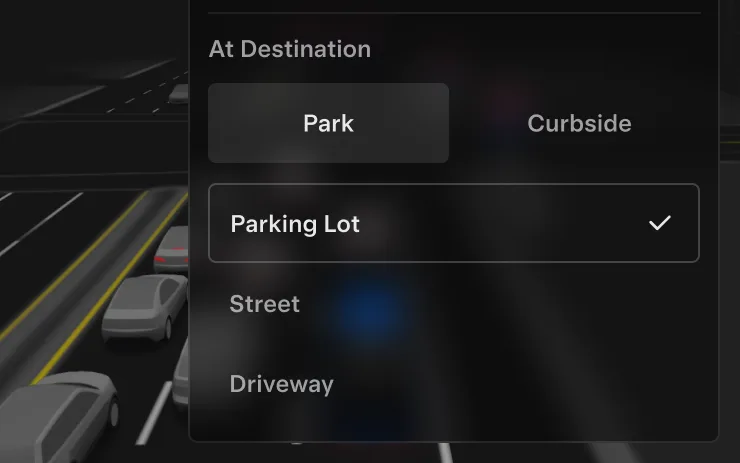
Brake Confirm requires the driver to press and release the brake pedal before FSD (Supervised) can be activated. You can also disable Brake Confirm in Self-Driving > Brake Confirm. When Brake Confirm is disabled, pressing the button will allow Self-Driving to apply the brakes and engage FSD (Supervised).
This feature does not make your vehicle autonomous and you must remain attentive and be ready to take over at any time. Only a licensed driver authorized to operate the vehicle should be allowed access to the driver's seat position any time the vehicle is not in Theater or Arcade modes.

Adjust settings like the Speed Profile directly from the Self-Driving visualization on the center display.

ASS (Actually Smart Summon) and Dumb Summon are now available for Cybertruck!

Full Self-Driving (Supervised) v14.3.6 includes:
Upcoming Improvements:

Full Self-Driving (Supervised) v14.3.5 includes:
Upcoming Improvements:

If you attempt to open a door while an approaching object is detected in your blind spot (for example, a bicyclist approaching from behind) the blind spot indicator light flashes, a chime sounds, and your door will not open upon initial button press. Wait a short time and press the button a second time to override the warning.

Dashcam clips are now encrypted for privacy when saved to your USB flash drive. Only your vehicle can view them. To decrypt clips, tap the padlock icon in the Dashcam app or visit dashcam.tesla.com. To disable encryption, go to Controls > Safety > Encrypt Dashcam Recordings.

You can now block Browser, Theater, and Arcade from your Tesla by going to Controls > Safety > Parental Controls while in Park.

This change only updates the name of certain features and text in your vehicle, and does not change the way your features behave.

Brake Confirm for the Start Self-Driving button is now defaulted off. When disabled, Start Self-Driving will not require you to press and release the brake to confirm engagement.
You can enable Brake Confirm in Self-Driving > Brake Confirm.

Full Self-Driving (Supervised) v14.3.3 includes:
Upcoming Improvements:

Under your supervision, Full Self-Driving (Supervised) Down Under can drive your Tesla almost anywhere. It will make lane changes, select forks to follow your navigation route, navigate around other vehicles and objects, and make left and right turns. You and anyone you authorise must use additional caution and remain attentive. It does not make your vehicle autonomous. Do not become complacent.
Full Self-Driving (Supervised) Down Under is enabled on your vehicle. To use the feature, press the right scroll wheel button once. You can disable Full Self-Driving (Supervised) Down Under in Self-Driving Settings.
Be aware of road conditions or hazards (such as pot holes and speed bumps) and operate the vehicle responsibly under all circumstances.

Upcoming Improvements:
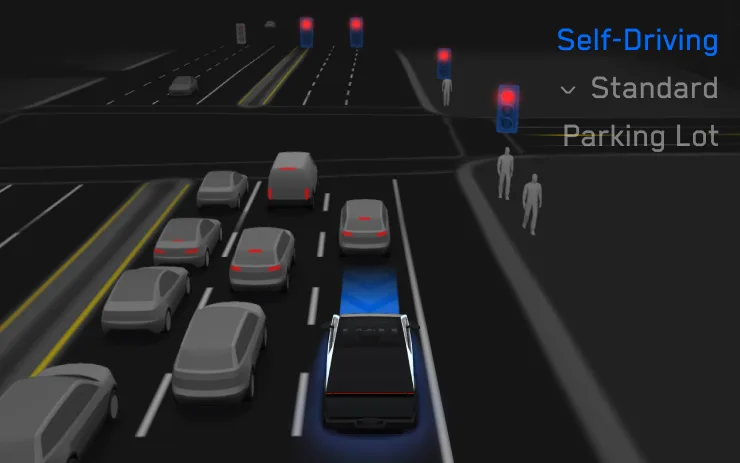
Full Self-Driving (Supervised) v14.3.4 includes:
Upcoming Improvements:
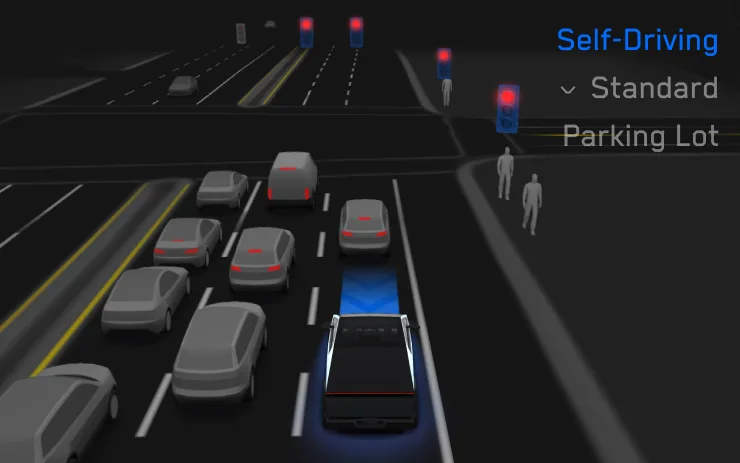
Full Self-Driving (Supervised) v14.3.3 includes:
Upcoming Improvements:

Navigation now shows estimated toll fees for each route, including discounted EV rates where available. This feature requires Online Routing. Go to Controls > Navigation > Online Routing to enable.

A chime will play when the traffic light you are waiting for turns green. If you are waiting behind another vehicle, you’ll hear the chime when the vehicle advances, unless Traffic-Aware Cruise Control or Autosteer is on. This chime is only a notification. To enable, go to Controls > Self-Driving > Green Traffic Light Chime.

You can now check on the interior of your Tesla while you're away. To enable, go to Controls > Safety > View Live Camera via Mobile App. Live Camera is end-to-end encrypted and can't be accessed by Tesla. This feature requires Premium Connectivity and Tesla Mobile App version 4.55.6 or later.

With the new Self-Driving app, subscribe with a single tap, learn how to activate and use the feature, and view ongoing stats.
To open, go to App Launcher > Self-Driving.

Your Tesla can now automatically install downloaded software updates overnight. When enabled, updates will install while your Tesla is parked and not in use, ensuring you always have the latest features and improvements.
To enable, go to Controls > Software > Automatically Install Updates.

Accent lights now turn red when an object is in your blind spot and your turn signal is engaged, or when an approaching object is detected while parked. To disable, go to Controls > Lights > Blind Spot Warning Accent Lights.

You can save any clip from Recent Dashcam footage for permanent storage on your Tesla or on your phone by going to App Launcher > Dashcam Viewer. To enable viewing on your phone, go to Controls > Safety and turn on View Camera via Mobile App. Clips stay on the vehicle and are never shared to Tesla.
Clips downloaded to your phone now include details such as speed, steering wheel angle, and Self-Driving state. Downloads require Premium Connectivity and Mobile App version 4.55.6 or later.

Premium Immersive Sound uses advanced sound extraction to place the listener in front of a detailed soundstage within an Immersive space. This enhancement works with all streaming sources.
Go to Settings > Audio > Tone > Immersive Sound to adjust.

Your selected keyboard language will also select the language used for dictation. Tap the international keyboard button to change keyboard and dictation language, without changing voice command language. Tap the mic icon in the keyboard to dictate.

Swipe right on tracks in Apple Music or Spotify to add them to the queue. In Apple Music, tap and hold on a track to add or remove from Favorites. In Spotify, swipe left to add or remove from Liked Songs.

Personalize your Tesla avatar with window tints, custom wraps, and license plates. Use one of many preloaded designs or create and upload your own using a USB flash drive to make your vehicle unique. Go to App Launcher > Toybox > Paint Shop or tap the paint or license plate button in Controls > Software.

Choose and name your pet by going to Controls > Display > Customize Pet Mode.

Unleash your inner artist with the enhanced Sketchpad, now supporting stickers and emojis. Save your sketches to access them in the Mobile App and share. Requires Mobile App version 4.55.6 or later.

You can now choose to route only to Superchargers with Tesla pricing. When enabled, Trip Planner will avoid locations where Tesla does not set charging prices or accept Free Supercharging credits. This setting requires connectivity with Online Routing enabled.
To enable, go to Controls > Navigation > Trip Planner settings.

Trips are now in the Energy app, where you can create and manage multiple trips to track energy usage across different drives, routes, or conditions. Go to App Launcher > Energy > Trips. For quick access to the Trips Card, swipe left on the Media Card.

The center display now features higher quality images of your Tesla, and an enhanced park scene environment.

Weather maps now show snow and rain with improved colors that make it easier to distinguish between precipitation types. You can also view the past hour of weather data to see how conditions have been changing along your route. This feature requires Premium Connectivity. To view, tap the weather icon on the map.
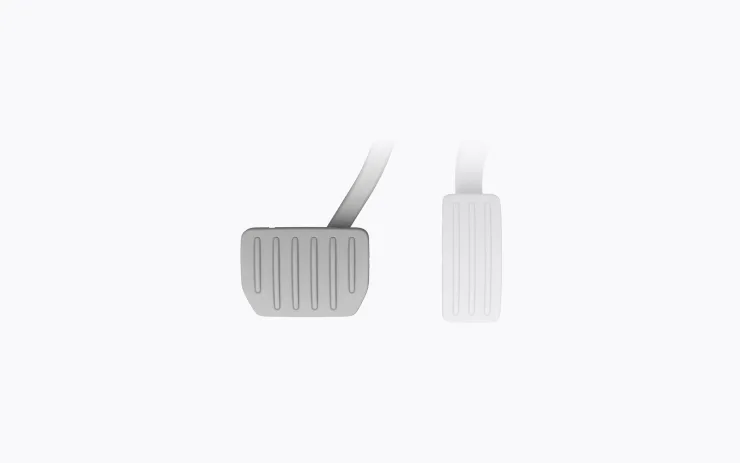
Your Tesla now provides a smoother feel as you come to a complete stop during routine braking.

Full Self-Driving (Supervised) v14.3.2 includes:
Upcoming Improvements:

Full Self-Driving (Supervised) v14.3.1 includes:
Upcoming Improvements:

Full Self-Driving (Supervised) v14.3 includes:
Upcoming Improvements:

You can now talk to Grok, an intelligent assistant built by xAI. You can choose Grok's voice and personality, ranging from Storyteller to Unhinged.
Grok can add and edit navigation destinations, becoming your personal guide. You can ask Grok to navigate to the best Thai restaurant near you, find a Supercharger within walking distance of a coffee shop, or even plan a romantic sightseeing tour. Requires Premium Connectivity or a WiFi connection. Conversations are anonymous to Tesla and not associated with your vehicle.
To launch Grok, go to App Launcher > Grok, or long-press the voice button on your steering wheel after you have logged in to Grok. Set Grok's personality to Assistant to use Navigation Commands.
Note: Grok is currently in early Beta and does not support voice commands for car controls other than navigation. Existing voice commands remain unchanged.

Charging can now be stopped and the charge cable released by pulling and holding the rear left door handle for 3 seconds, provided the vehicle is unlocked or a recognized key is nearby. This is especially useful when the charge cable unlatch button does not work or a charging adapter is stuck in the charge port. You can still release the cable using the vehicle touchscreen or the Tesla app.

FSD (Supervised) v13 Down Under upgrades every part of the end-to-end driving network.
Includes:
Upcoming Improvements:

Your vehicle will chime a few seconds after the doors close if a phone is left on the wireless charger and no occupants are detected.
Go to Controls > Locks > Phone Left On Wireless Charger Chime.

When Full Self-Driving (Supervised) is enabled, the driver monitoring system primarily relies on the cabin camera to determine driver attentiveness. Cabin camera must have clear visibility (e.g., camera is not occluded, eyes, arms, are visible, there is sufficient cabin illumination, and the driver is looking forward at the road without sunglasses, or other objects covering their eyes). In other circumstances, the driver monitoring system will primarily rely on torque-based (steering wheel) monitoring to detect driver attentiveness.
If the cabin camera detects inattentiveness, a warning will appear. The warning can be dismissed by the driver immediately reverting their attention back to the road ahead. Warnings will escalate depending on the nature and frequency of detected inattentiveness, with continuous inattention leading to a Strikeout.
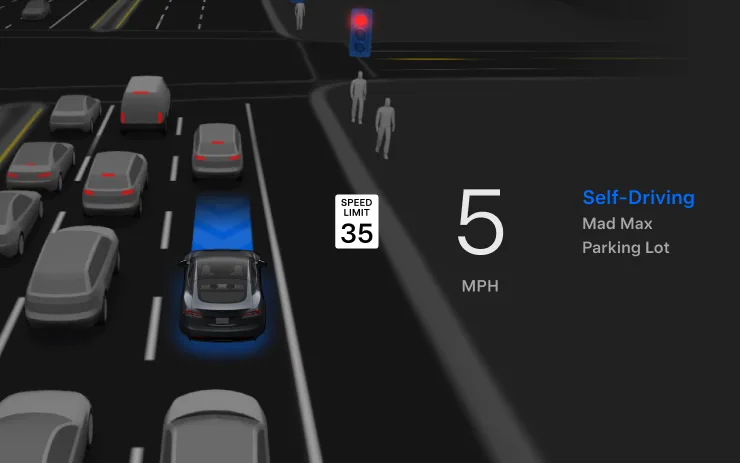
Full Self-Driving (Supervised) v14.2.2.4 includes:
Upcoming Improvements:

Full Self-Driving (Supervised) v14.2.2.3 includes:
Upcoming Improvements:
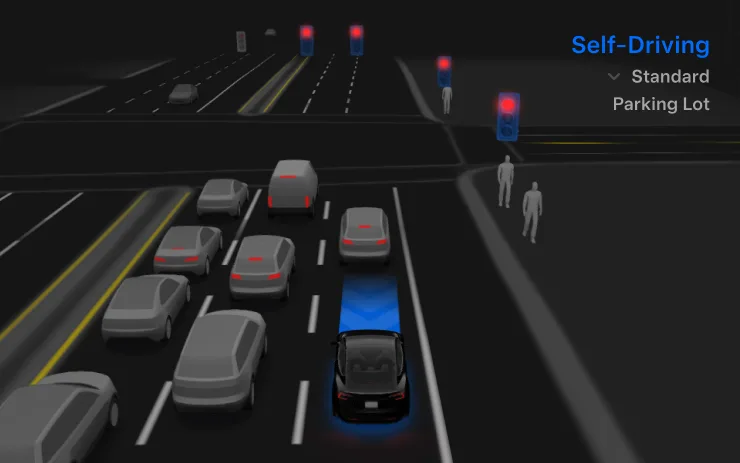
Full Self-Driving (Supervised) v14.2.2.2 includes:
Upcoming Improvements:
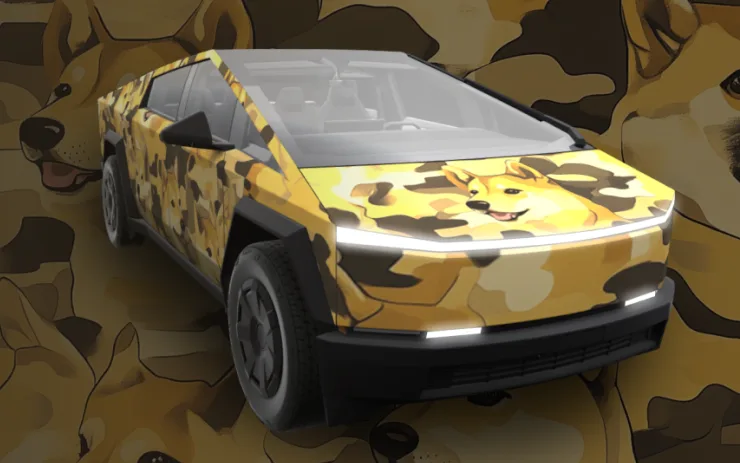
Paint Shop now lets you customize your Cybertruck with new wraps, window tint options and license plate designs. Perfect your look before hitting the road!
Go to App Launcher > Toybox > Paint Shop.

Navigation now includes an option to use high-occupancy vehicle (HOV) carpool lanes automatically based on time, passenger count, and road restrictions.
Go to Controls > Navigation > Use HOV.

Dashcam clips now include additional details such as speed, steering wheel angle, and self-driving state. This information appears in the Dashcam Viewer during playback on both the vehicle display and the Tesla App. Requires Premium Connectivity and Tesla App version 4.51.5+.
To enable viewing on your phone, go to Controls > Safety and turn on View Camera via Mobile App.

Keep an eye on your pet! When Dog Mode is active, you’ll see a Live Activity on your iPhone with live updates on temperature and climate conditions. If you have Premium Connectivity, you’ll also get periodic snapshots of your vehicle’s cabin. Requires Tesla App version 4.51.5+.

Full Self-Driving (Supervised) v14.2.2 includes:
Upcoming Improvements:

Time to celebrate with the latest Light Show - Jingle Rush. You can play the show instantly or schedule it up to 10 minutes in advance, either on a single vehicle or synced with friends. Light Show enthusiasts can control interior lighting, add display color effects, and create longer custom shows. To play a custom show, save the show files in a "LightShow" folder on your flash drive, connect, and select.
Start the show from your Tesla App or go App Launcher > Toybox > Light Show on your vehicle's touchscreen.


You can now reorder your navigation favorites, set Home or Work by dropping a pin anywhere on the map, and view suggested destinations based on your recent trips and habits.

Your vehicle will chime a few seconds after the doors close if a phone key is inside the cabin or a phone is left on the wireless charger and no occupants are detected. Phone key detection requires UWB-supported devices.
Go to Controls > Locks > Phone Left Behind Chime.

Spread holiday cheer year round and transform your in-car experience with holiday themed effects. Santa Mode now adds festive snowmen, trees, a lock chime, and snow effects for a 3D visual treat.
Go to App Launcher > Toybox > Santa.

You can now save a charge limit for your current location while parked, and it will be applied automatically next time you charge there.
Go to Controls > Charging.

Become an astronaut and prove your skills by docking with the International Space Station. Control and guide the rocket in this 3D docking simulator game using a set of controls based on actual interfaces used by NASA astronauts.
To play, shift into Park (P), and go to App Launcher > Arcade > SpaceX.

You can now see a 3D view of select Tesla Superchargers by tapping "View Site Map". When navigating to a pilot location, the site layout and live occupancy (Available / Occupied / Down) will be displayed upon arrival.

Turn your car into a photobooth! Take selfies from inside your Tesla and give yourself a makeover with fun filters, stickers, and emojis. Share your stylish photos with friends and family right from the Tesla App. Your car must be in Park. Requires Tesla App version 4.51.5+.
Go to App Launcher > Toybox > Photobooth.

Forward Collision Warning is now accompanied by haptic feedback in addition to audible and visual warnings. Warnings cancel automatically when the risk of a collision has been reduced.
Forward Collision Warning is enabled by default.
Also included
Rolled out across 33 releases in this range.

This update includes important security fixes and improvements.
Data via Teslascope